


TP-Link Tether
4.721.31K Reviews
App Specs
- Version
- 4.15.5
- Updated On
- License
- Free
- Downloads
- 50,000,000+
- Developer
- TP-LINK SYSTEMS INC.
- Categories
- Tools
- Platform
- Android, iOS
Screenshots
 Analysis by AppCompare
If you're anything like me, juggling a million things at once, the last thing you want is a complicated Wi-Fi setup. That's where TP-Link Tether comes in. I decided to give it a spin to see if it could simplify my home network management.
Before opening it, I’d make one distinction clear: this is a companion app for managing compatible TP-Link networking devices, not a universal controller for every router. The developer is TP-LINK SYSTEMS INC., and the app is free to install, though in-app purchases are listed from $2.99 to $159.99 per item. It’s a Tools app rated for Everyone, so the practical question is less about learning a complex interface and more about whether your router is supported and what settings that particular model exposes.
That compatibility point is the first thing I’d check if I were helping a friend get started. If your router is not a TP-Link model, or your particular device does not work with Tether, the app will not replace its manufacturer’s own management tool. For a TP-Link owner, though, it can be more convenient than opening a browser, finding the router’s local address, and navigating a desktop-style settings page on a phone.
What to expect from a router companion
At a glance, Tether is intended to put everyday network management in one place. Its store summary describes access to and management of devices, and that is the right way to think about it: a phone-friendly control point rather than a way to improve the internet connection by itself. A router’s capabilities still set the boundaries. The options you see can depend on the model, so I wouldn’t assume every feature or screen described by another user will appear on every TP-Link setup.
That distinction matters when comparing it with the alternatives. Your internet provider’s app may be more useful for account details, billing, or provider-supplied equipment. A router’s web interface can be better for someone who wants to inspect detailed settings or is comfortable with a wider control panel. Tether’s appeal is the middle ground: a simpler phone workflow for compatible TP-Link devices, without asking you to become a network administrator just to make a routine change.
The scale of its audience is reassuring, though it is not a substitute for checking compatibility: Tether has over 50 million installs, a 4.7 average from around 807,000 ratings, and about 21,000 written reviews. It was released on July 23, 2013, and version 4.12.135 is listed for Android 7.0 and later. Those figures suggest it is a well-established app, but I’d still treat the exact router model as the deciding factor before relying on it.
Initial Impressions
Right off the bat, TP-Link Tether impressed me with its sleek and intuitive design. The app is available for both Android and iOS, making it super accessible whether you're an Apple fan or an Android aficionado. Downloading and installing the app was a breeze—no hiccups or lengthy processes. I was ready to roll within minutes.
Worth Reading Before You Choose

EA SPORTS FC Mobile 26 Is a Bigger Football Game, but It Takes Time

Flipboard Shows What News Apps Must Do Beyond the Feed

Switching to Android Auto Means Rethinking Your Driving Routine

Google Calendar Makes a Crowded Week Easier to Manage

Ludo King Makes the Most of the Minutes Between Plans

Baby Panda World Brings Quick Play to Modern Phones, but Its Game Library Feels Busy
Setup and Configuration
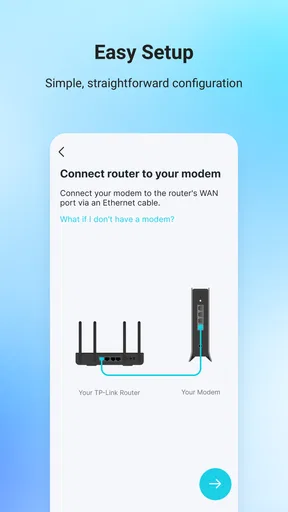
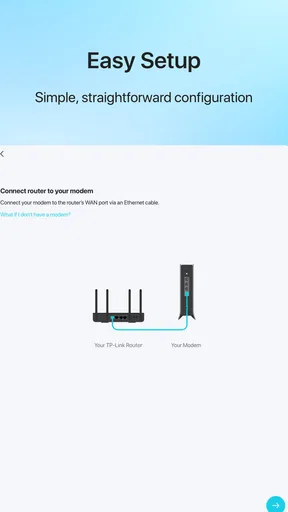
Setting up my home network via Tether was surprisingly easy. I just plugged in my TP-Link router, opened the app, and followed the step-by-step instructions. The app guided me through everything from choosing a network name to setting up a strong password. Honestly, it felt like the app was holding my hand the entire time.
Getting to a first useful result
For a first-time user, I’d make the first goal modest: get connected to the router and confirm that the network appears as expected. That gives you a useful checkpoint before changing several settings at once. If the app can’t find the device, I’d first make sure my phone is connected to the TP-Link network I intend to manage, then check that the router is powered on and that I’m using the correct login details. A failed discovery does not automatically mean the router is broken; it can be a matter of the phone being on another network or the model not being supported.
Once access works, change one thing at a time and check the result before moving on. For example, if you rename the Wi-Fi network, reconnect your phone and one other device before updating every smart speaker, camera, or appliance in the house. This small sequence makes it easier to identify which change caused trouble and prevents a simple network adjustment from turning into a whole-home reconnection job.
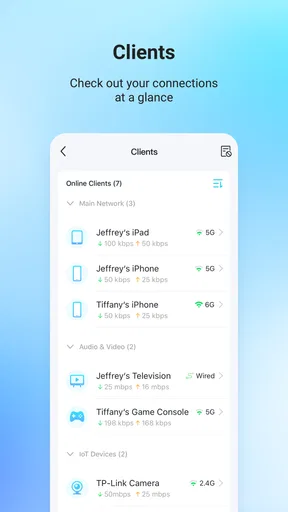
Another cool feature is the ability to manage multiple devices. If you're like me and have a smart home with tons of connected devices, this feature is a lifesaver. The app shows you all the devices connected to your network, allowing you to manage them with just a few taps.
Making the device list genuinely useful
A connected-device list is most helpful when you use it to answer a practical question, not just to browse. If the Wi-Fi feels slow while everyone is home, checking which devices are connected can help you spot an unfamiliar name or a device that is no longer in use. I’d avoid removing or blocking an entry simply because its label looks strange: phones and smart-home products do not always show up with names that are obvious to everyone. When in doubt, compare the list with devices you know are switched on before taking action.
It can also help with ordinary household changes. When a visitor asks for Wi-Fi access, a guest network—if your router offers that setting—can keep their connection separate from the network you use for personal devices. When a new gadget refuses to connect, checking whether it appears among connected devices can help distinguish a setup problem from a device that has already joined. These are small checks, but they make a phone-based router tool more valuable than opening it only when the internet stops working.
User Interface
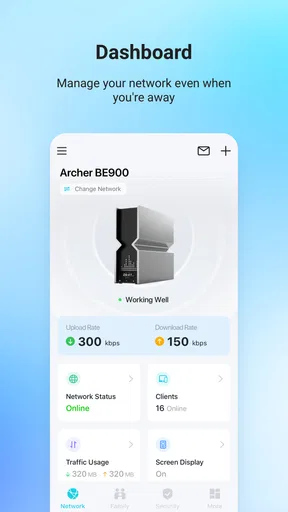
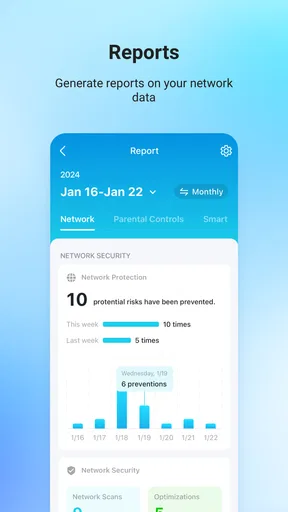
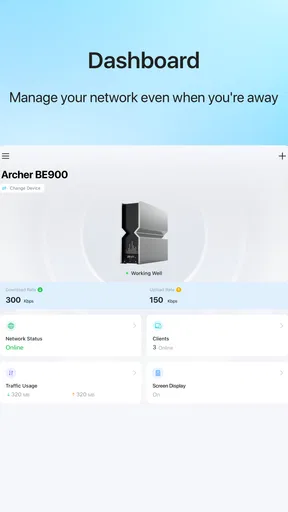
The user interface is clean and straightforward. I particularly loved the dashboard, which gives you a snapshot of your network's status. It shows real-time data, like download and upload speeds, and even lets you prioritize devices for better performance. I could easily tweak settings without getting lost in a maze of options.
Keeping changes manageable
I would treat speed information and device prioritization as aids to investigation, not promises of a faster connection. A router app can help you see what is happening on the home network, but it cannot fix a problem with the internet service, poor router placement, or a weak signal in a distant room. If one room is consistently unreliable while nearby devices work, changing priority may not solve the underlying coverage issue. In that situation, checking placement or considering equipment designed to extend coverage may be more useful than repeatedly adjusting app settings.
There is also a trade-off in keeping management simple. A streamlined mobile screen is less intimidating for everyday tasks, but it may not be as comfortable as a full web interface when you want to inspect advanced network details. I’d use Tether for routine checks and straightforward changes, then turn to the router’s fuller controls when a setting is not exposed in the app or when I need a more detailed view.
Parental Controls and Guest Network
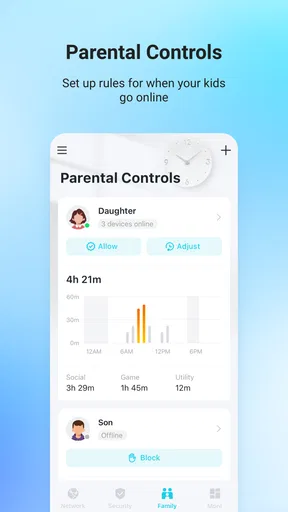
As a parent, I found the parental controls to be a fantastic feature. You can set up profiles for each member of your household, limiting internet access during homework time or bedtime. The guest network option is another gem, letting you create a separate Wi-Fi network for visitors. It's a great way to keep your main network secure while still being a gracious host.
For a realistic everyday use, imagine a relative visiting for the weekend while a child needs a predictable bedtime routine. If the connected router supports these controls, a guest network can give the visitor access without handing over the main Wi-Fi details, while a household profile can make a schedule easier to manage from the phone. I’d still explain the arrangement to everyone who uses the network: a schedule or access limit is a household rule implemented through the router, not a replacement for talking through expectations or checking that the chosen profile matches the right devices.
Security Features
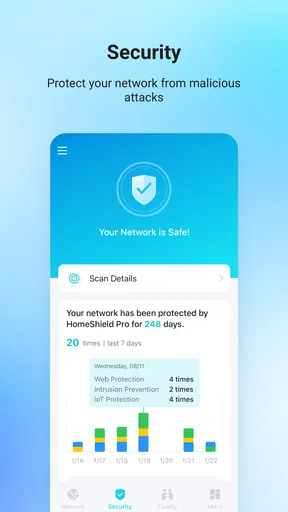
Security is a top priority for me, and Tether doesn’t disappoint. The app offers advanced security features like WPA3 encryption and an option to update your router’s firmware with just a tap. Knowing that my network is protected against potential threats gives me peace of mind.
For firmware updates, my practical advice is to do them when a brief interruption would not be disruptive. Check that you are managing the intended router, start the update when nobody is depending on a video call or an online task, and give the process time to finish before restarting anything. A quick control inside an app makes the step more approachable, but it does not mean an update should be treated as an instant background change with no effect on connected devices.
Performance and Reliability
Once everything was set up, I noticed a significant improvement in my Wi-Fi performance. Streaming, gaming, and browsing were all smooth sailing. The app also provides network diagnostics, which came in handy when I needed to troubleshoot a slight connectivity issue. A quick reboot did the trick, and I was back online without a hitch.
When troubleshooting, I’d start with the smallest test that can narrow down the cause. If one device is offline, check that device and its Wi-Fi connection before rebooting the whole router. If multiple devices lose access at once, a router restart may be a reasonable next step, but it briefly disconnects everyone, so I’d warn other people at home first. If the problem returns, note whether it affects every device or only one area; that detail is more useful than repeating the same reboot without learning anything from it.
This is where expectations matter. Tether can make router controls easier to reach, but a diagnostic screen cannot guarantee that every fault can be fixed in the app. A service outage, a damaged cable, or a device-specific problem may need a different response. I like having a convenient place to begin checking, while recognizing that the app is one part of troubleshooting rather than a cure for every connection issue.
Customer Support and Community
Although I didn't encounter any major issues, I did explore the app’s support section just to see what was available. TP-Link offers comprehensive FAQs and a community forum where users can discuss and solve common problems. If you ever get stuck, you’re not alone—help is just a few clicks away.
Who will get the most from it
I’d recommend Tether most to someone who already owns a compatible TP-Link router and wants to handle routine network tasks from a phone. It is especially appealing if you share the home network with family, often host visitors, or prefer checking connected devices without sitting down at a computer. New users can begin with a simple connection check and build confidence before exploring settings that affect everyone in the house.
I would skip it if you need to manage a router from another brand, if your TP-Link model is not supported, or if you expect the app to diagnose and repair every internet problem automatically. It may also be less satisfying for a network enthusiast who wants every advanced control on one screen. In those cases, the router’s own web interface or the app supplied for the relevant equipment is the better place to start.
A sensible next step
After the initial setup, I’d keep the app focused on a few useful habits: check the device list when something unfamiliar appears, review the network before changing access, and make one setting change at a time. That approach is more dependable than tapping through options simply because they are available. It also makes it easier to undo a change if a household device stops connecting afterward.
There is no need to make the app part of a daily routine if your Wi-Fi is working well. I’d open it when I need a specific answer—who is connected, whether a supported setting needs attention, or where to begin with a connection problem—and leave the network alone otherwise. That keeps router management practical instead of turning it into another task to monitor.
In conclusion, TP-Link Tether is a fantastic tool for anyone looking to simplify their home network management. Whether you're a tech novice or a seasoned pro, this app has something for everyone. From its intuitive setup to robust security features, it ticks all the right boxes. So, if you’re in the market for a reliable and user-friendly networking app, give Tether a whirl. I promise, you won’t regret it.
Pros
- Easy setup for TP-Link routers.
- User-friendly interface design.
- Real-time network management.
- Parental controls included.
- Remote access capability.
Cons
- Limited to TP-Link devices only.
- Occasional connectivity issues.
- Lacks advanced network features.
- No support for non-TP-Link routers.
- Requires account for full features.
FAQs for TP-Link Tether
What is TP-Link Tether and what does it do?
TP-Link Tether is a mobile application designed to help users manage their TP-Link routers and range extenders. It allows you to set up your network devices, monitor connected devices, and customize your network settings. This app provides a user-friendly interface that simplifies network management, making it accessible even for non-tech-savvy users.
Which devices are compatible with TP-Link Tether?
TP-Link Tether supports a wide range of TP-Link routers and range extenders. To ensure compatibility, you should check the device list on TP-Link's official website or the app description in the store. Generally, most modern TP-Link devices are supported, but it’s always best to confirm for specific models.
Is TP-Link Tether secure to use for managing my network?
Yes, TP-Link Tether prioritizes user security by requiring login credentials to access the app. Users can also set up a secure password for their network and manage parental controls and guest networks directly from the app. Regular updates from TP-Link enhance security features further, ensuring a safe user experience.
Can I use TP-Link Tether to manage multiple devices simultaneously?
Yes, TP-Link Tether allows you to manage multiple TP-Link devices from a single app. This feature is incredibly useful for users who have multiple routers or range extenders in their home or office setup. The app provides a centralized dashboard to switch between devices effortlessly.
Does TP-Link Tether require an internet connection to function?
While TP-Link Tether does not require an internet connection to manage basic settings on your network devices, some features like firmware updates and certain remote management capabilities do need internet access. However, initial setup and local network management can be done offline, provided you are connected to the device's network.


